Tutorial
How to Download Telegram Video (with the Chrome extension)
This site is a companion to the Telegram Media Downloader Chrome extension — there is no online “paste link” downloader here. Below is how to save videos and other media using the extension in Chrome, in line with the product description on the Chrome Web Store.
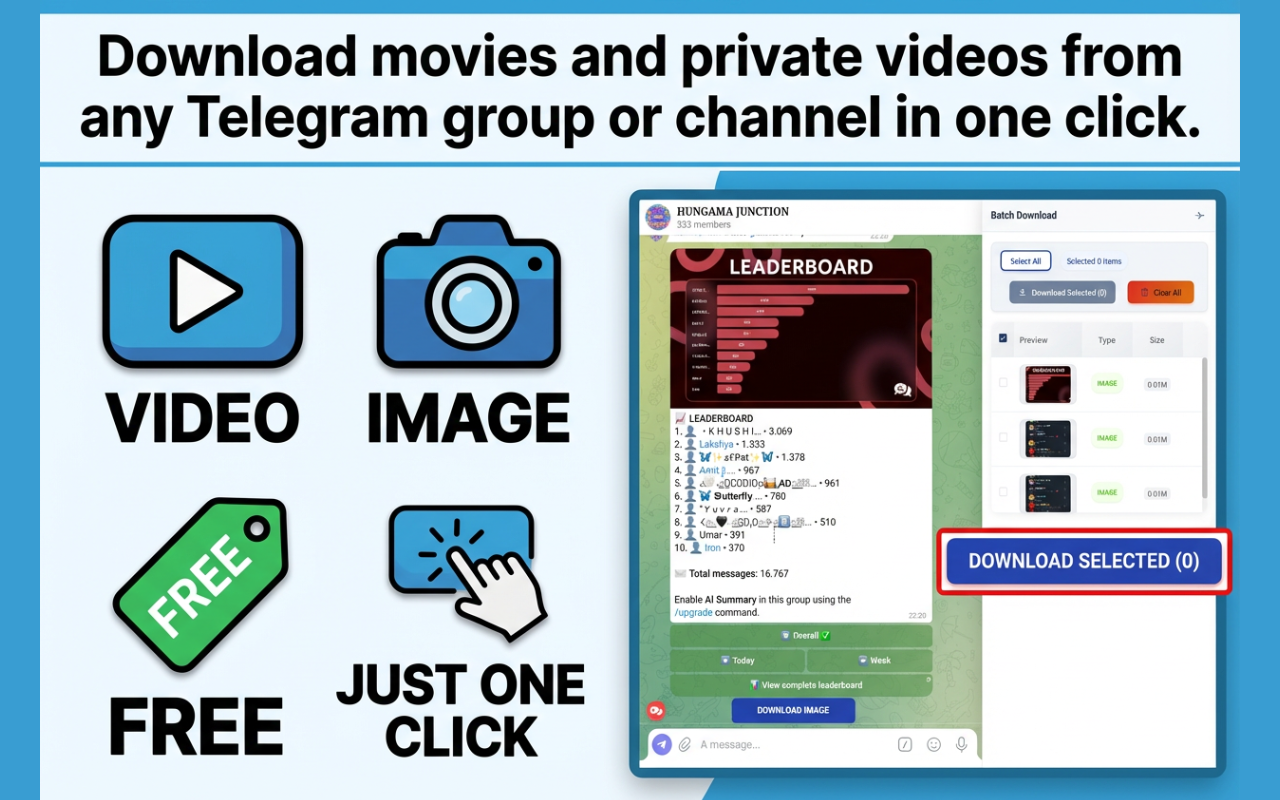
Telegram Media Downloader is a free, fast Chrome extension that helps you save videos, images, audio, and files from Telegram to your computer. It supports one-click and batch selection, with no login required on this website. Use it for personal organization and backup — and only for content you are allowed to save.
Step 1 — Install from the Chrome Web Store
Open the store listing and add the extension to Chrome. This companion site only links to the store; it does not run downloads itself.
Step 2 — Open Telegram Web in Chrome
Go to the official Telegram Web experience in Chrome and sign in using Telegram’s normal login flow. Never enter your Telegram password on unrelated third-party sites.
Step 3 — Save video or other media
Navigate to the channel, group, or chat where the media appears. Use the extension’s actions to download a single file or select multiple items for batch saving — matching the “one-click / batch” and multi-type support described for the product.

Private channels and large files
For content you can only see while logged in, the extension works in the browser session where Telegram already shows the media. Large files (including 1GB+) are supported when your connection allows. For more context see private / restricted videos and the download guide.